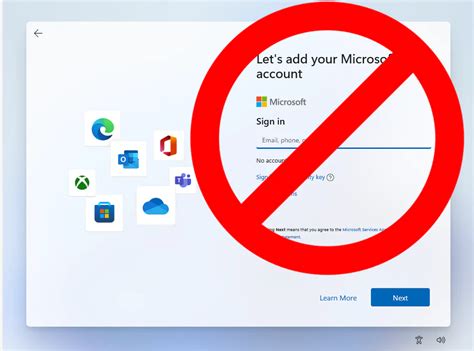
When you perform a clean installation of Windows 11 , the Setup wizard prompts you to sign in with your online Microsoft Account (MSA). If your computer is on a network isolated (disconnected) from the Internet, you don’t have a Microsoft account, or you don’t want to use one, you simply won’t be able to sign in to your device during the Windows 11 setup process.
A local user account is a classic offline Windows account that is created and stored locally on the device and does not require an Internet connection for setup or use. The password hashes of these users are stored locally in the Security Accounts Manager (SAM) database.
Setup Local Account with Internet connection
If you have an internet connection when installing Windows 11 25H2 but would prefer not to use a Microsoft account, there are specific steps you can follow to create a local account instead.
- Select the option to join the computer to the domain. (Set up for work or school).
- On the Microsoft account sign-in screen, click Sign-in options to view the available options.
- Select Domain-join instead
- You will then be prompted to create a new local account and set a password for it. An actual connection to the Active Directory domain is not required for this. But you will also be asked to enter three recovery questions.
This method of bypassing the Microsoft account requirement only applies to Windows 11 Pro and Enterprise editions (not Home).
Setup Local Account without internet
If your computer is connected to an isolated network (without an Internet connection), there is an alternate option to install Windows 11 with a local account:
- If your computer isn’t connected to the Internet, the Windows Out Of Box Experience (OOBE) wizard won’t allow you to complete the installation of Windows 11 25H2 without a network connection. This step only contains a button to load network adapter drivers. There is no option to skip the network check and continue installation with a local account
- You can bypass this screen. Press
Shift+F10to open the command prompt. - Run the
oobe\bypassnrocommand and your computer will restart automatically. (This command bypasses the OOBE requirement to check network availability, Bypass Network Requirement Oobe). - Now OOBE skips the network connection check, and the I don’t have Internet button will appear. Click it, click Continue with limited setup, and you will be able to create a local Windows user.
During the OOBE phase, advanced users can manually create a local Windows user.
To do this, create a new local Windows user account using the command prompt (press Shift+F10):
net user MyLocalAdm /add *
#Set a user password, and then list local groups:
net localgroup
#Find the name of the built-in Administrators group
#The next step is to add your user to the Administrators group: net localgroup administrators MyLocalAdm /add <Admingroupname>
oobe\msoobe.exe #-> this wil reboot the computer
After login you need te start compmgmt.msc and disable/remove the defaultuser0 accout to hide it from the login screen.
This is a part of this article, very well usefull page!